
How to Activate Outlaw Trailer GPS Tracker
Key Takeaways
5 things to know before activating your Outlaw Trailer GPS tracker
-
01
App Activation takes under five minutes from registration to final submit.
-
02
Active Service Plan is required for real-time GPS location data to transmit.
-
03
Update Frequency setting controls how often your trailer GPS tracker reports location.
-
04
First Satellite Lock takes up to 15 minutes outdoors and happens one time only.
-
05
Geofence Alerts notify you instantly the moment your trailer moves without permission.
The box is open and the Outlaw GPS tracker is in your hand. Now what?
How to activate Outlaw trailer GPS tracker is the only thing on your mind right now, and the answer is simpler than you think. The whole process takes under 5 minutes.
Most first-time users hit the same wall. The app is open, the device is right there, and nothing is showing on screen. No location, no signal, no movement. That pause is not a hardware problem. Activation simply has not been completed yet.
Fifteen years of working with GPS tracking setups across the US, and this exact moment comes up more than any other. A brand new Outlaw trailer GPS sitting silent because nobody walked the owner through the app registration start to finish.
Every step in this guide follows the exact order it appears inside the app, from account creation to your first live location ping, with the real friction points flagged so nothing slows you down.
If you have not chosen your device yet and are still comparing options, start from here first: How to Choose The Right Trailer GPS Tracker? If you already have a GPS tracker for trailers in your hand. Good, the activation takes only five minutes.

Outlaw GPS: Installs in Minutes, Tracks in Real Time
No wiring. No complicated setup. Outlaw Trailer GPS attaches in seconds and starts tracking immediately, real-time location updates, instant alerts, and full coverage wherever your trailer goes.
Most trailer thefts happen within the first hour. Outlaw GPS installation and activation takes less than 5 minutes.
Get Your Outlaw GPS →Quick Answer
To activate your Outlaw GPS tracker, open the app and register as a new user. Select "Activate Device," then scan the QR code on the back of the unit or enter the serial number manually.
Choose a service plan, set your location update frequency, complete payment, agree to terms, and submit. The app redirects you to your device screen automatically.
Power on the tracker, take it outside, and your GPS tracking is live within minutes.
What You Need Before You Start Activation?

Before you open the app, take sixty seconds to get everything in one place. Starting mid-setup without a payment method or serial number in front of you is the most common reason people abandon halfway through.
Here is everything you need:
- Outlaw GPS tracker: Tracking device (battery powered or use hardwired kit for continuous tracking without charging frequently), the app activation process is identical for both
- Smartphone: iOS or Android, with the Outlaw GPS app downloaded from the App Store or Google Play
- Email address: Used to create your account during registration
- Payment method: Credit or debit card for the payment of selected service plan
- Device serial number: Printed on the back side of the Outlaw GPS device
- Stable internet connection: Your phone needs a live connection throughout the setup process
- Clear outdoor area: Required for the first GPS satellite signal test after activation is complete
Have your card ready before you open the app. The plan selection step comes faster than most people expect, and fumbling for a card mid-flow adds unnecessary interruption to an otherwise smooth process.
How to Activate Your Outlaw GPS Tracker, Step by Step
Every step below follows the exact order you will see inside the app. Each one moves quickly, and the only step that needs a little patience is the last one. Completely normal, and worth the wait.
Step 1: Create Your New User Account

Follow the given steps for registration:
- First open the Outlaw GPS app select "New User Registration" from the home screen.
- Fill in your basic details, name, email address, and password, then tap Submit.
- App account setup takes about twenty seconds, and you are logged in immediately after.
One thing worth knowing.
The confirmation email does not always land in your inbox right away. If thirty seconds pass and nothing shows up, check your spam folder before assuming something went wrong. Certain email providers flag new user registration emails automatically.
Account created, now you can move on to the next step.
Step 2: Add Your Device

From your account dashboard, select "Activate Device." Two options appear for GPS tracker registration, and both lead to the same result.
Method 1: QR Code Scan (Recommended)
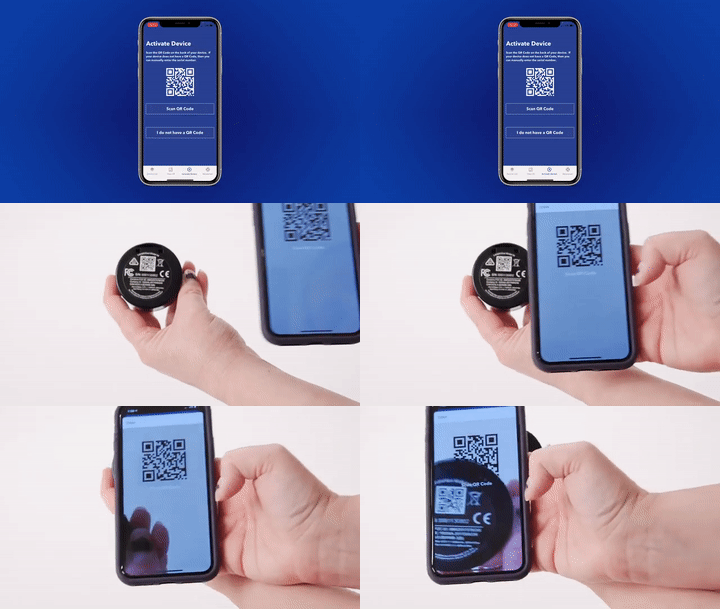
Fastest way to add your tracker, and zero chance of a typo:
- Tap "Scan QR Code"
- Point your phone camera at the QR code on the back of the tracker
- Device details auto-populate instantly, no typing needed
One condition: normal lighting. Dim indoor light is the most common reason scans fail. Step closer to a window and try again before switching methods.
Method 2: Manual Serial Number Entry
If the scan keeps failing, manual entry gets the job done just as well:
- Tap "I don't have a QR Code"
- A manual entry screen opens for your device serial number
- Type the 10-digit device serial number exactly as printed, no spaces, no dashes
- Read it twice before submitting, the number "0" and letter "O" look identical on most units
Both methods complete device registration in under thirty seconds.
After your device is added and recognized in the system, the next step is choosing how you want to pay for GPS tracking service.
Step 3: Choose Your Service Plan

Outlaw GPS runs on cellular networks, which means real time GPS location data cannot transmit without an active plan. No subscription, no tracking. Two options are available:
- Monthly: Auto-charges each month with no long-term commitment, the most flexible option for occasional or seasonal trailer use
- Prepaid: Available in 6-month, 1-year, and 2-year terms with discounted pricing compared to monthly, the better fit for contractors, fleet vehicles, or anyone tracking daily
Choosing between them comes down to how often your trailer moves. Seasonal owners and occasional users get full value from monthly. If your trailer GPS tracker is working year-round, prepaid saves money over time without any difference in service.
Select your plan and move to the next screen.
Step 4: Set Your Location Update Frequency

One setting, one decision. Your chosen interval also determines your monthly plan price. Choose how often your Outlaw GPS sends location updates to the app:
- 3-Minute Updates: $19.95/month, best for stored or seasonal trailers where occasional location checks are enough
- 1-Minute Updates: $24.95/month, the right balance for most trailer gps tracker owners, accurate without overspending
- 30-Second Updates: $34.95/month, solid choice for active job site trailers that move regularly
- 10-Second Updates: $39.95/month, near real time gps visibility for high-value assets
- 5-Second Updates: $44.95/month, aggressive tracking for active theft risk areas
- 3-Second Updates: $49.95/month, the fastest location data refresh available, built for fleet vehicles requiring maximum visibility
For most trailer owners, 1-minute updates hit the right balance between tracking accuracy and cost. If your trailer operates in a high-risk area, stepping up to 30-second or 10-second updates is worth the difference.
Select your interval and continue.
When your tracking interval is selected, the final app step is payment and agreement confirmation.
Step 5: Complete Payment and Accept Terms

The Payment Method screen asks for your card details. Fill in each field carefully:
- Name on card
- Card number
- Expiry date (MM/YYYY)
- CCV
- Zip code
Using a prepaid card? Check the "This is a prepaid card" box before proceeding.
Next, the Payment Summary screen displays your order total, device type, selected plan, and monthly payment amount. Review everything before moving forward. When the numbers look right, tap "Add Payment Method" to attach your card.
The Terms and Policies checkbox sits just below. Check it to confirm your agreement.
A note will appear on screen: this is a monthly recurring charge, and you can cancel your service at any time through the app or the website. Tap Ok to acknowledge it.
The Submit button activates once the checkbox is confirmed. Tap it to finalize your setup.
One friction point worth knowing: if Submit stays greyed out, scroll down and confirm the Terms checkbox is checked. Every time.
Activation is complete on the app side. Now the tracking device itself needs to come online.
Step 6: Power On Your Device and Run a Signal Test
After tapping Submit, the app redirects you to the Device List screen automatically. You will see your device listed as "Device Active" with a prompt on screen: Turn Device On and Take it Outside.
Follow exactly that.
Power on your tracker based on the model you have:
- Battery/magnetic models: Attach the tracker to your trailer or simply move it. Motion triggers the device to power on automatically
- Hardwired models: Connect the tracker to a 6-24V power source such as your trailer battery. Need wiring guidance?
Planning to hardwire your tracker? Read this before you start: How to Install a Hardwired Trailer Tracker.
Read Hardwired Install Guide →Once powered on, take the device outside and give it 10 to 15 minutes. No buildings, no covered areas. Open sky is what the GPS needs to complete its first satellite lock.
App activation took under 5 minutes. The first satellite lock takes up to 15 minutes outdoors, and it happens one time only.
Most people assume the device is broken at this point. Nothing is wrong. The first GPS satellite lock always takes longer than every lock that follows. Step outside, wait 10 minutes, and check the app again.
Once the lock completes, the app redirects you to the live location screen. Your trailer GPS tracker is now online, and real time GPS location data is visible on the map.
Want to watch the full activation process instead? With official Outlaw GPS tutorial walks you through every step shown above:
Up next, two quick settings that turn your active tracker into a theft protection system.
How to Set Up Geofence and Motion Alerts
Activation is done and your device is online. Two more minutes of setup is the difference between knowing your trailer moved and finding out after the fact.
Open the app dashboard and navigate to the Alerts section.

How to Set Up a Geofence?
Geofencing for trailer security works by creating a virtual boundary around your trailer's parked location. The moment your trailer crosses that boundary, you get an instant notification on your phone.
- Open the map view in the app and center it on your trailer's current location
- Draw a boundary around the area
- Set the radius based on your situation - tighter for job sites, wider for open storage lots
- Save the geofence
Trailer thieves move fast and rely on the gap between theft and discovery. A geofence closes that gap immediately.
To understand exactly how thieves operate and what stops them, read: Most Common Trailer Theft Methods.
Read Theft Methods Guide →How to Enable Motion Alerts?
Motion alerts notify you the moment your trailer registers unexpected movement, even before it crosses a geofence boundary.
- Navigate to Alert Settings in the app
- Enable motion detection
- Choose your notification method - push notification, email, or both
- Save your settings
- Test it: Tap the trailer lightly and confirm the notification fires on your phone
Set both before the trailer leaves your driveway for the first time. Waiting until after something happens is too late.
Geofence is live, motion alerts are on. One last check before you park the trailer and walk away, take thirty seconds to confirm everything is reporting correctly.
How to Confirm Your Tracker Is Online and Working

Open the app dashboard and run through three quick checks:
- Device status shows "Online" with a green indicator next to your device name
- Location pin on the map matches your trailer's actual current position
- Location updates are arriving at the interval you selected during setup
A common question at this stage: "The pin is showing me two streets over." That is normal for the very first GPS fix. Accuracy tightens fast once the tracking device has a clear sky view for a few minutes. No action needed, just wait.
If all three checks pass, your Outlaw GPS is fully operational and actively reporting real time GPS location data.
Now that your tracker is live, How to Monitor Trailer Location While Traveling covers everything you need to get the most out of the app while on the road.
Read Monitoring Guide →Most users get through activation without a hitch. If something stalls, the fix is almost always simple.
Activation Troubleshooting: What to Do If Something Goes Wrong

Check the section that matches your issue and work through it top to bottom.
QR Code Not Scanning
A failed scan is almost always an environment issue, not a device issue:
- Check that camera permissions are enabled for the Outlaw GPS app in your phone settings
- Move to better lighting, dim indoor light is the most common cause of scan failure
- Clean the QR code surface on the back of the tracker, dirt or scratches block the scan
- Try holding the phone steady and closer to the QR code before retrying
- Switch to manual serial number entry as a fallback if the scan continues to fail
If none of the above works, manual entry gets the job done just as reliably.
Serial Number Not Recognized
Double-check these three things before contacting support:
- Look carefully for "0" vs "O" confusion, the most common data entry mistake on serial numbers
- Confirm all 10 digits are entered with no spaces and no dashes
- Verify the unit is an Outlaw brand GPS tracker
If the error persists after checking every digit, reach out to the support team directly.
Device Not Showing Online After Power-On
Nine times out of ten, this comes down to location and patience:
- Move outdoors immediately, GPS satellite lock cannot complete indoors or under cover
- Wait the full 10 to 15 minutes before assuming something is wrong
- Check cellular signal strength in your area
- Check your power connection, battery models need motion to activate and hardwired models need a live 6 to 24V source
- Power source behavior varies by model type, our Wired vs Wireless Trailer GPS Tracker guide covers what to expect from each setup
Give it the full wait time outdoors before drawing any conclusions.
Submit Button Stays Greyed Out
Two things cause this and both take seconds to resolve:
- Scroll down on the Payment Summary screen and confirm the Terms and Policies checkbox is checked, this is the reason almost every time
- Re-enter card details if the payment method did not save correctly
Hit Submit again once both are confirmed.
Need Help? Reach Outlaw GPS Support

If anything stalled during setup, the Outlaw GPS support team has seen it before and will sort it out fast.
Real people handle activation issues every day. Two ways to reach them:
- Phone: 1-951-704-9503 - available Monday to Friday for direct support
- Email: help@outlawtrailergps.com - available seven days a week for non-urgent setup questions
Visit outlawtrailergps.com/pages/technical-support to find additional resources.
No chatbots, no automated runaround. Just straightforward help from people who know the product.
Conclusion
Fifteen years of working with GPS tracking setups, and the most common thing I hear after someone activates for the first time is: "That was easier than I expected." Account creation, device registration, plan selection, payment, and the app links everything together in under five minutes.
The only moment that asks anything of you is the first satellite lock. Ten to fifteen minutes outside, one time, and every check-in after that is instant. Everything before it moves fast.
Before the trailer leaves your driveway, make sure the geofence boundary is drawn and motion alerts are on. Those two settings are what turn an active tracker into a real theft protection system. Activation gets the device online. Alerts are what make it work for you.
If anything comes up during setup, the Outlaw GPS support team is one call or email away.
Protecting your trailer starts the moment that first location ping hits the app. Now you know exactly how to get there.
Your Outlaw GPS Tracker Is Ready. Your Trailer Should Be Too.
Most trailer theft victims had one thing in common. They never set up tracking.
Five minutes of activation is the only thing standing between your trailer and that list.

Author Disclosure
Hi, I'm Ryan Horban, a GPS tracking specialist with more than 15 years of hands-on experience helping trailer owners, contractors, and fleet operators across the United States protect their assets and stay connected to their equipment around the clock.
A significant part of my work involves first-time setup support. Over the years, I have walked hundreds of owners through activation, from the moment the box opens to the first live location ping on the app. Most of the friction points covered in this guide come directly from those conversations, the same questions, the same stuck moments, the same relief when the device finally shows online.
My goal with this article is simple: get your Outlaw GPS tracker activated correctly the first time, with no guesswork and no unnecessary back-and-forth with support. Every step here reflects real setup experience, not a spec sheet.
👉 Connect with me on LinkedIn →
🌐 Visit: ryanhorban.net

Frequently Asked Questions
Do I need a subscription to use my Outlaw GPS tracker?
Yes, and there is no way around it. Outlaw GPS trackers transmit real time GPS location data over cellular networks, which means an active service plan is required for the device to report anything. Without one, the tracker stays silent.
Monthly and prepaid options are both available. Monthly suits flexible or seasonal use. Prepaid plans at 6-month, 1-year, and 2-year terms offer discounted pricing for owners who track year-round.
What if I cannot scan the QR code during activation?
No QR code, no problem. Tap "I don't have a QR Code" in the app and a manual entry screen opens for your device serial number. Type all 10 digits exactly as printed on the back of the unit:
- No spaces, no dashes
- Watch carefully for "0" vs "O" confusion, they look identical on most units
- Read the number twice before tapping Submit
Both methods complete activation the same way.
How long does Outlaw GPS activation take?
App activation from registration to final Submit takes under five minutes for most users. The step that takes longer is the first GPS satellite lock after powering on the device.
That takes up to 15 minutes outdoors and happens one time only. Every lock after the first one is significantly faster. If the app shows nothing in the first few minutes after power-on, go outside and wait. Normal behavior.
Can I change my service plan after activation?
Yes. Log into the Outlaw GPS app, open your account dashboard, and update your plan anytime. No need to contact support for a plan change.
What update frequency should I choose?
Most trailer owners do well with 1-minute updates at $24.95 per month. A good balance between tracking accuracy and cost.
For high-value assets in active theft areas, 30-second updates at $34.95 per month give near real time GPS visibility with a minor price difference. For stored or seasonal trailers that rarely move, 3-minute updates at $19.95 per month keep costs low without sacrificing coverage.
Choose based on how your trailer is used, not just the price.


